

IAmResponding.com integrates with iOps360 by adding us to your alert emails. Once iOps360 receives an alert email, the information will be parsed and sent to the status boards. IaR’s format tends to vary quite a bit from one call to another so advanced features like Response Times and Mapping is not available at this time.
Setting Up IaR
There are a few steps to being the IAR setup. First we will create authentication for your IAR connector.
- Click on Resources From The Menu Bar
- Integrations
- Dispatch/CAD
- Click on iAmResponding Alerts
- Generate Token & Setup
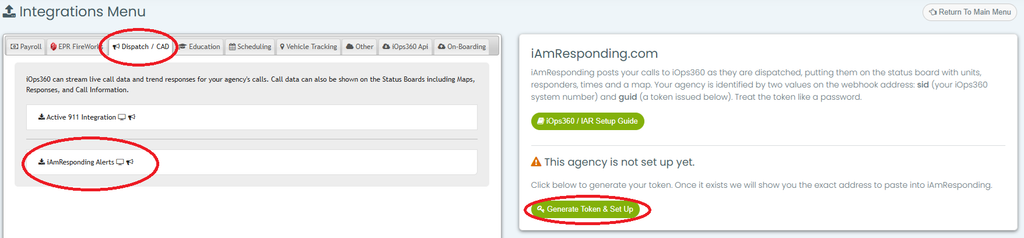
This will generate your “sid” and “guid” which will be used in the iAmResponding website. Next, log into IAR on your administrator account.
- Log into IAR on your Administrator account
- Click on Settings
- External Integrations
- Manage Integration API
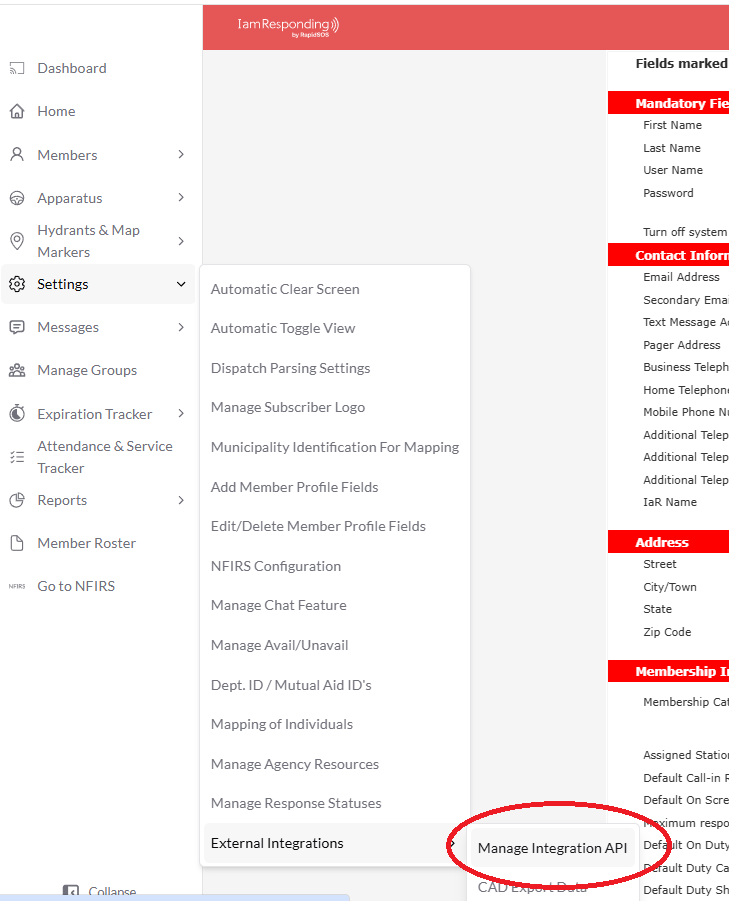
- Click “Add New” under External Integrations
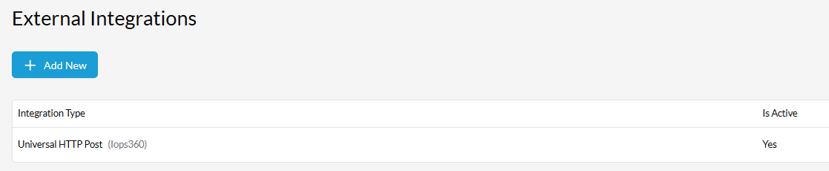
- Select “Universal HTTP Post”
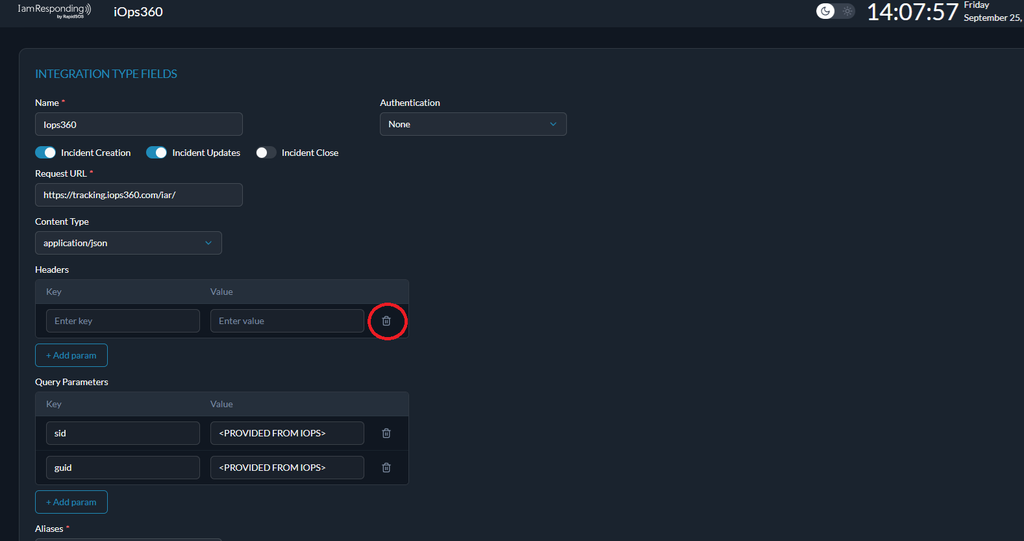
- Name the integration “iOps360” or anything similar
- Authentication “None”
- Click the checkbox for “Incident Creation” and leave the others un-checked
- Request URL is “https://tracking.iops360.com/iar/“
- Content Type is “application/json”
- Headers are blank/none
- **Important** If you have Enter key/Enter Value, click the Trash Icon to remove this line. See Image Below
- Add Two (2) Query Parameters: “sid” and the value from iOps360 along with “guid” from iOps360. Do not include the quotation marks.
- Select all needed apparatus/vehicles on the Aliases section. This will likely be all of your front line vehicles.
- Click save to complete.
You are all set. After your next alert from IAR, you will now see the alerts in the Active911/CAD section along with displaying on the status boards when a new alert is received.